
 |
|
get race-ready
with sportsense.
A setup guide for the Specialized track managers running the Lenzerheide weekend. The first part gets the team set up, from accounts through to the race feed. The second part is the race-day workflow, where you film every rider through their sector and voice-tag each clip as you go, so it lands organized by rider and sector with nothing to sort after practice.
Set Up the
Accounts.
Two account types run the weekend. The track managers work on Pro, and every rider joins for free.
1.1
Track Managers on Pro
- The four track managers (the coaches and staff running the weekend) each need a Pro account. Pro is what lets you create feeds and upload or share video.
- Download sportsense from the App Store (iOS) or Google Play (Android) using the buttons below.
- Open the app, tap Sign Up, and enter your name, email address, and a password. Verify your email if prompted, then log in.
- Make sure each manager's account is on Pro before the weekend so all four can create feeds and post clips on the day.
1.2
Riders on Free Accounts
- Every rider creates a free account. They never pay to be added to a feed.
- Same sign-up: download sportsense, tap Sign Up, and enter a name, email, and password.
- Once a rider has an account they can be added to the race feed and tagged in clips.
Build the
Race Feed.
One shared feed holds the whole weekend. Every clip, from every sector, lands in the same place.
2.1
Create the Lenzerheide Feed
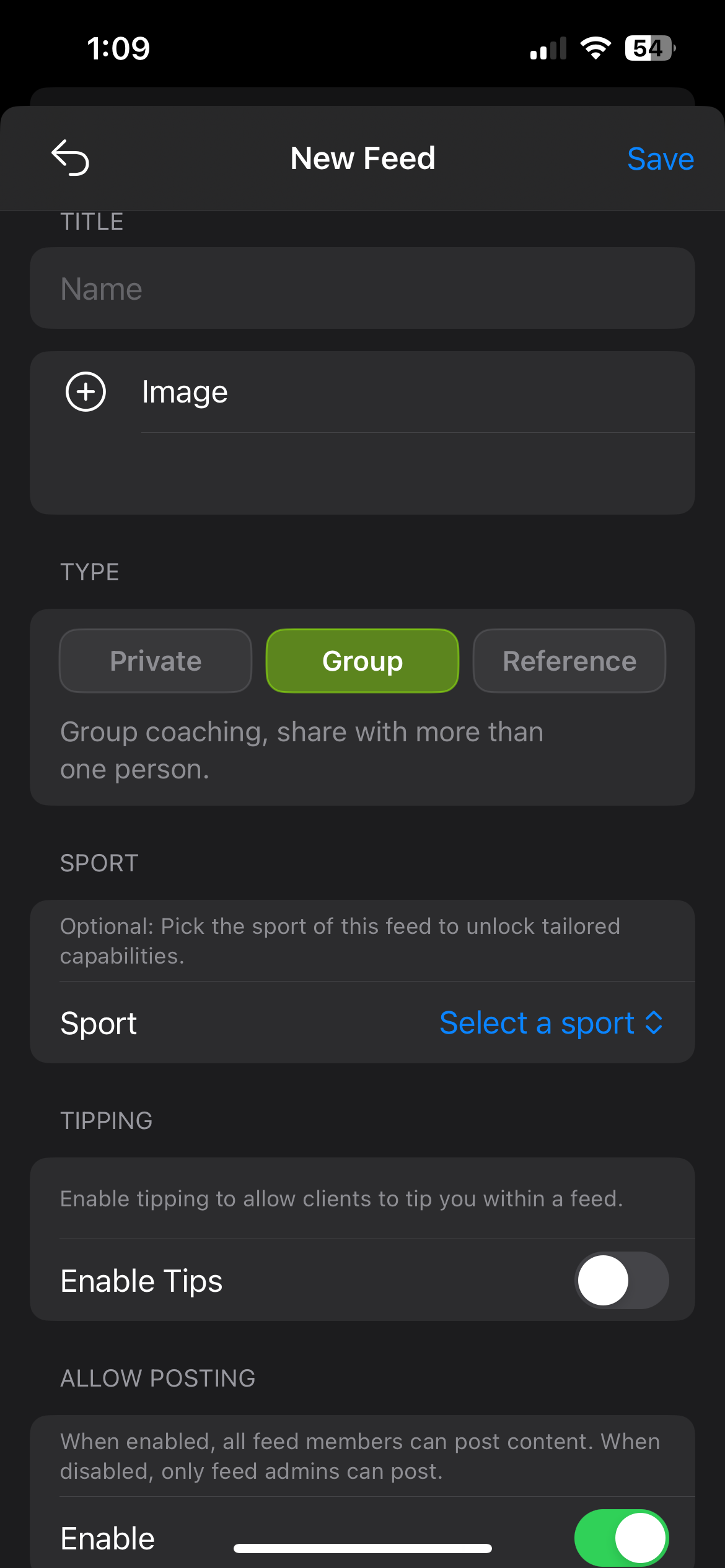
- Tap the Share tab at the bottom of the app (the rightmost icon).
- Tap the + button in the top right corner to create a new feed.
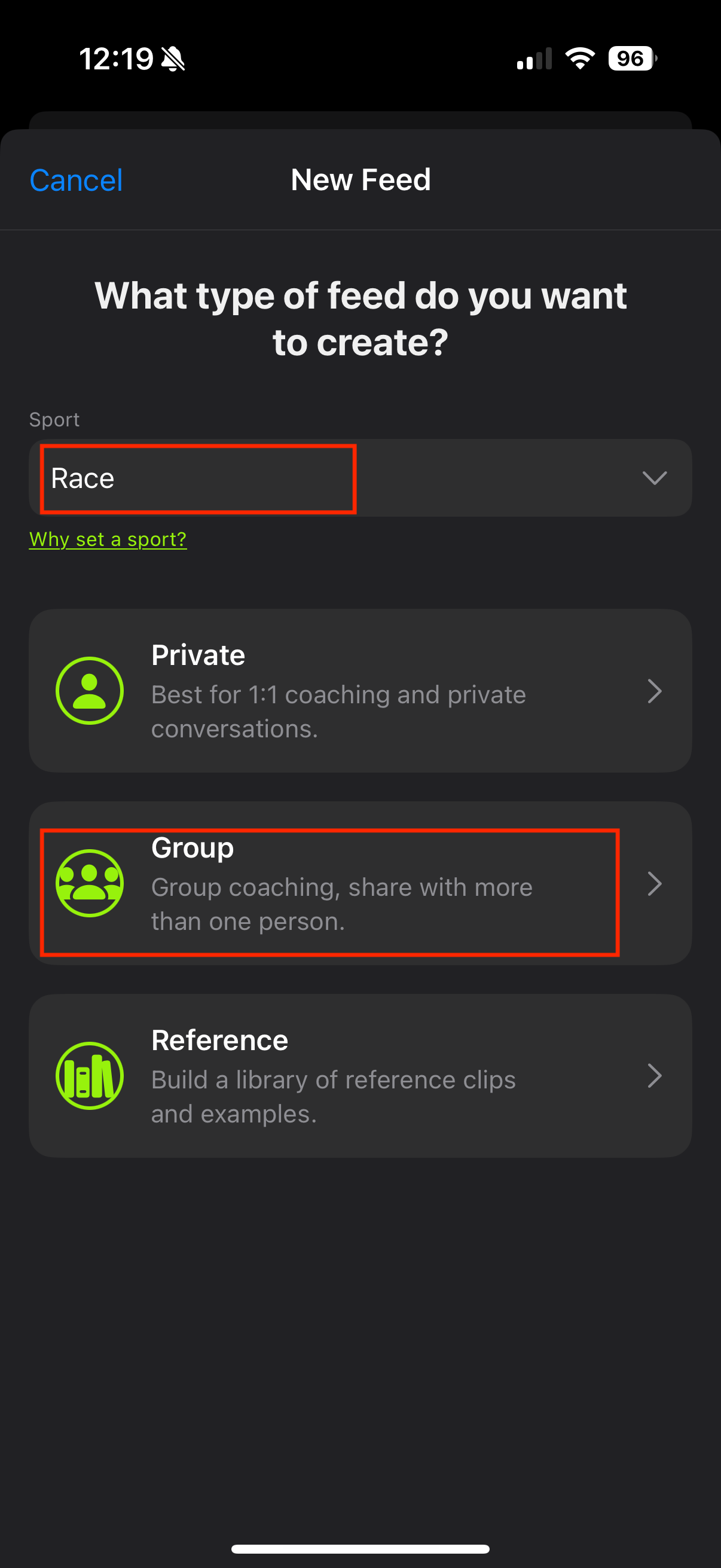
- Choose Group as the feed type, and set the Sport to Race. The Race sport is what makes the sector tags available.
- Give the feed a name (whatever works, the riders and managers just need to recognise it).
- Add the track managers and make them admin so they can add videos and manage the feed.
- Riders get added as regular users once they have accounts (Step 03).

2.2
Set Up Course Sectors
With the Race sport set on the feed, every clip can be tagged by where on track it was shot.
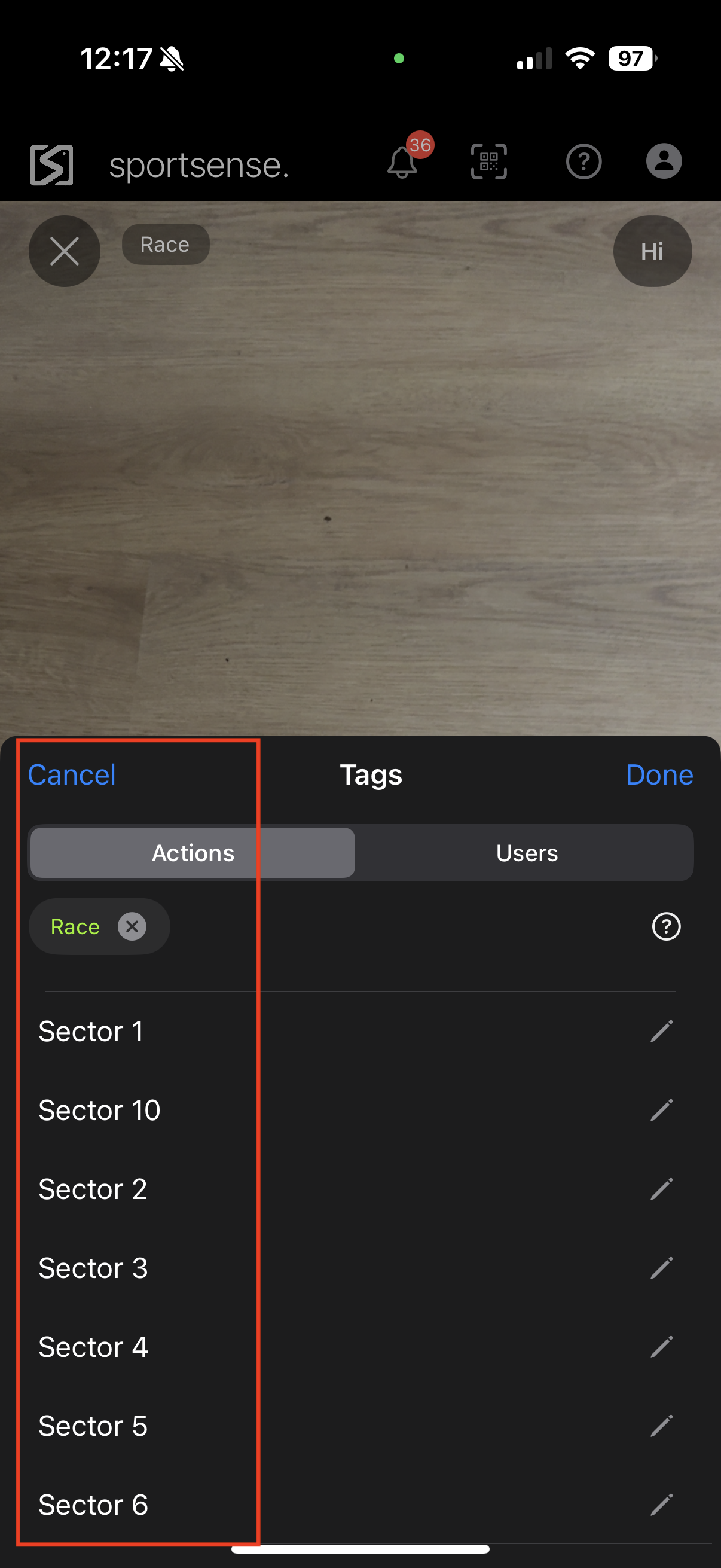
- The sector tags (Sector 1 through Sector 10) are available under Actions when you tag a clip.
- Open them from the tag icon at the bottom left of the camera, which is where you set the Actions, then pick the sector.
- The feed then organizes clips by rider, sector, and date, with anything untagged grouped separately so it is easy to fix (see Race Day).
Add Riders
& Staff.
Get everyone into the race feed. Anyone in the feed can be tagged in clips.
3.1
Add Riders to the Feed
Once a rider has signed up, add them to the race feed.
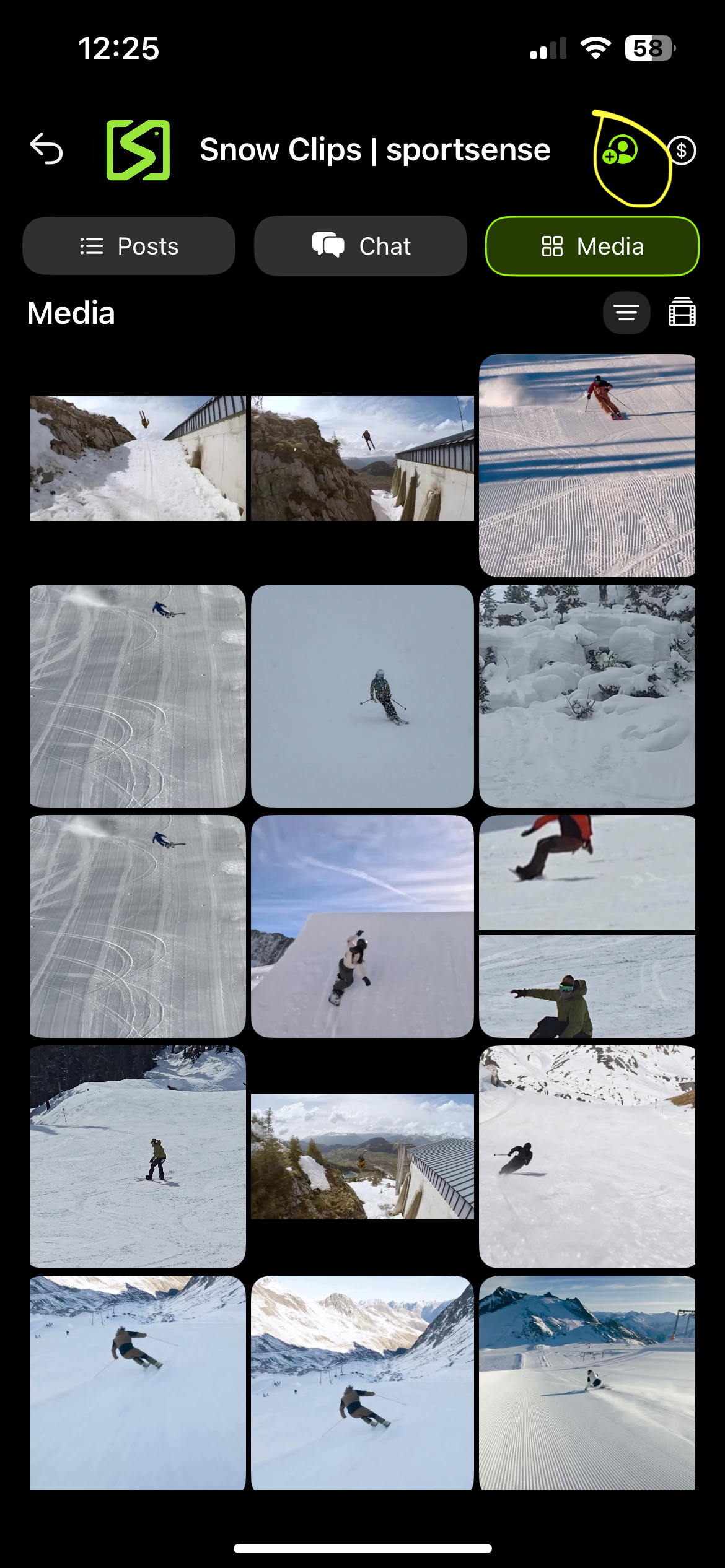
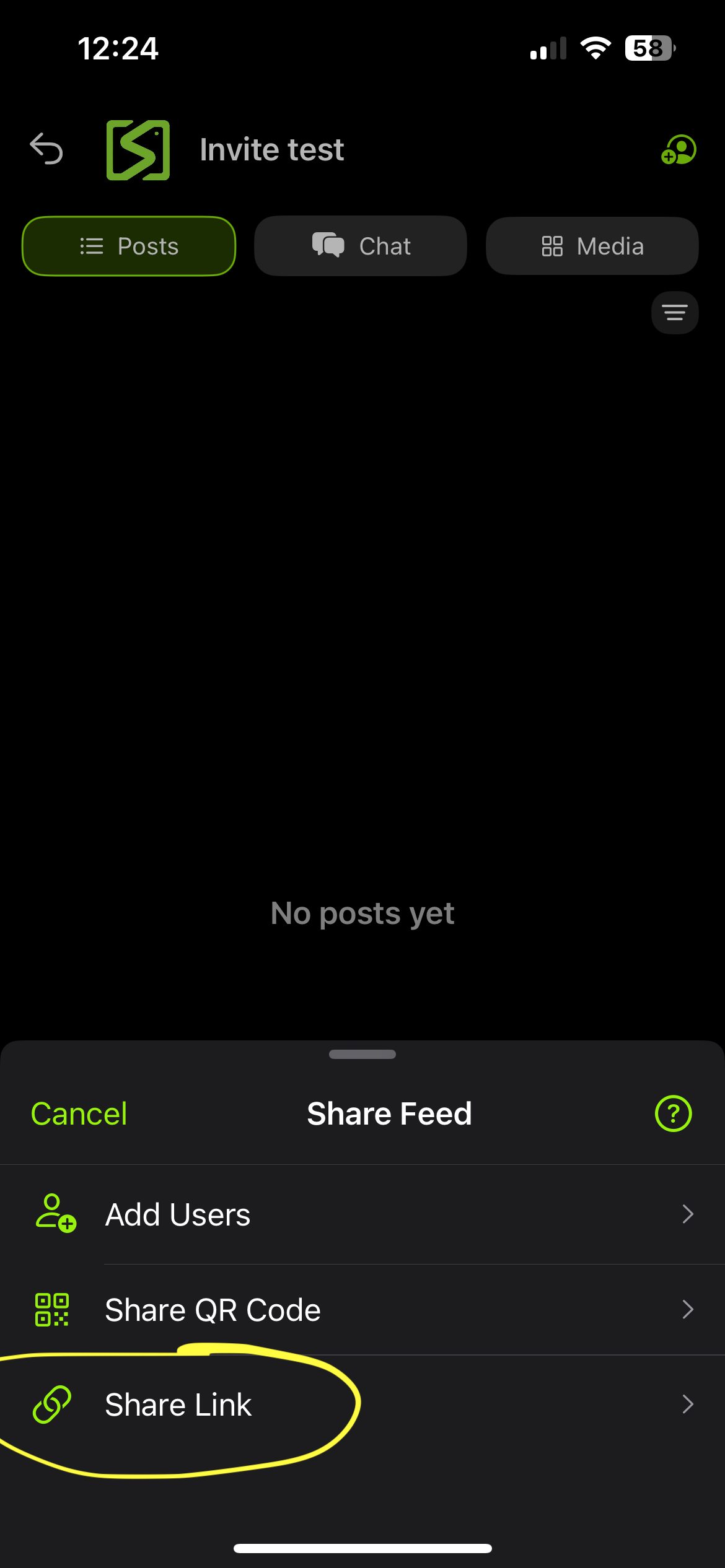
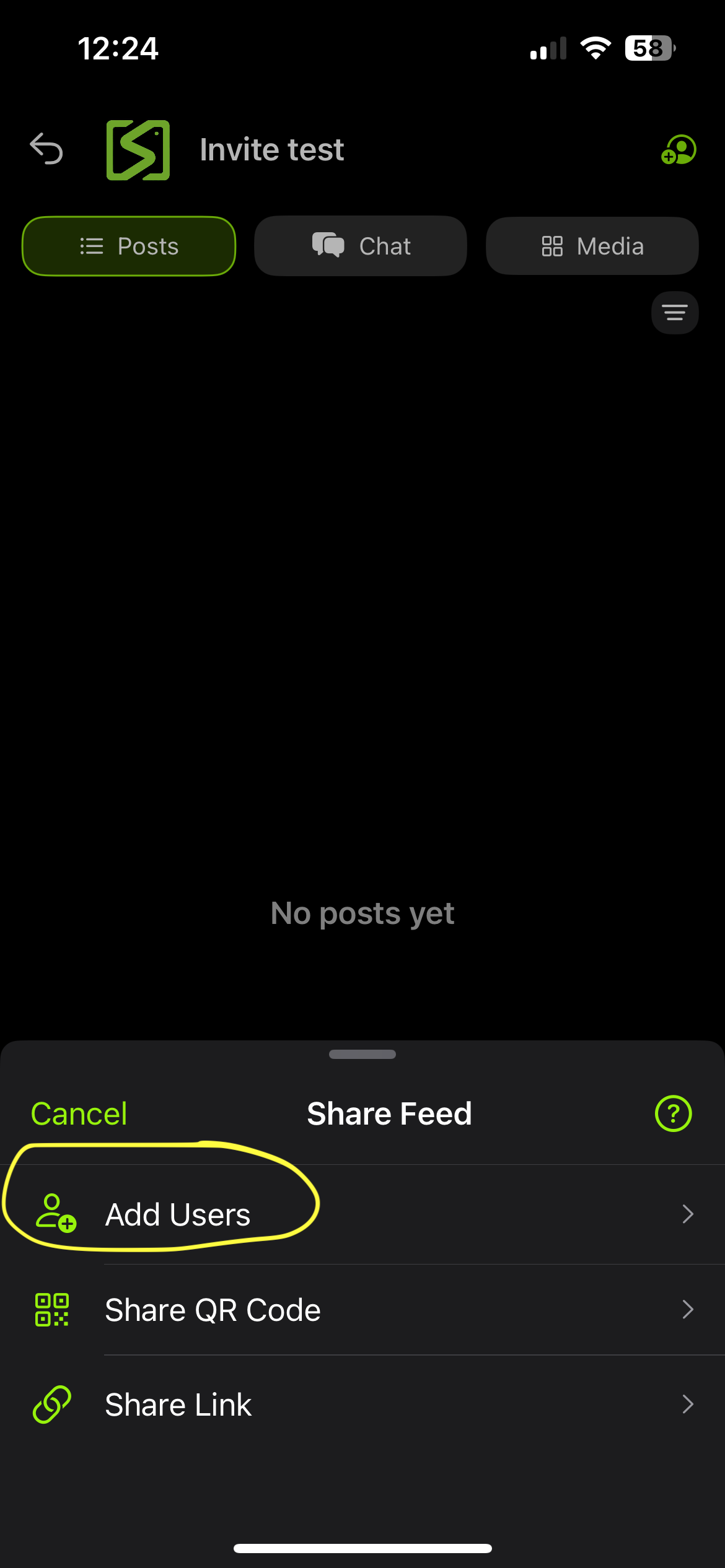
- Open the feed and tap the feed title at the top to open feed settings, then tap Invite or Add Member.
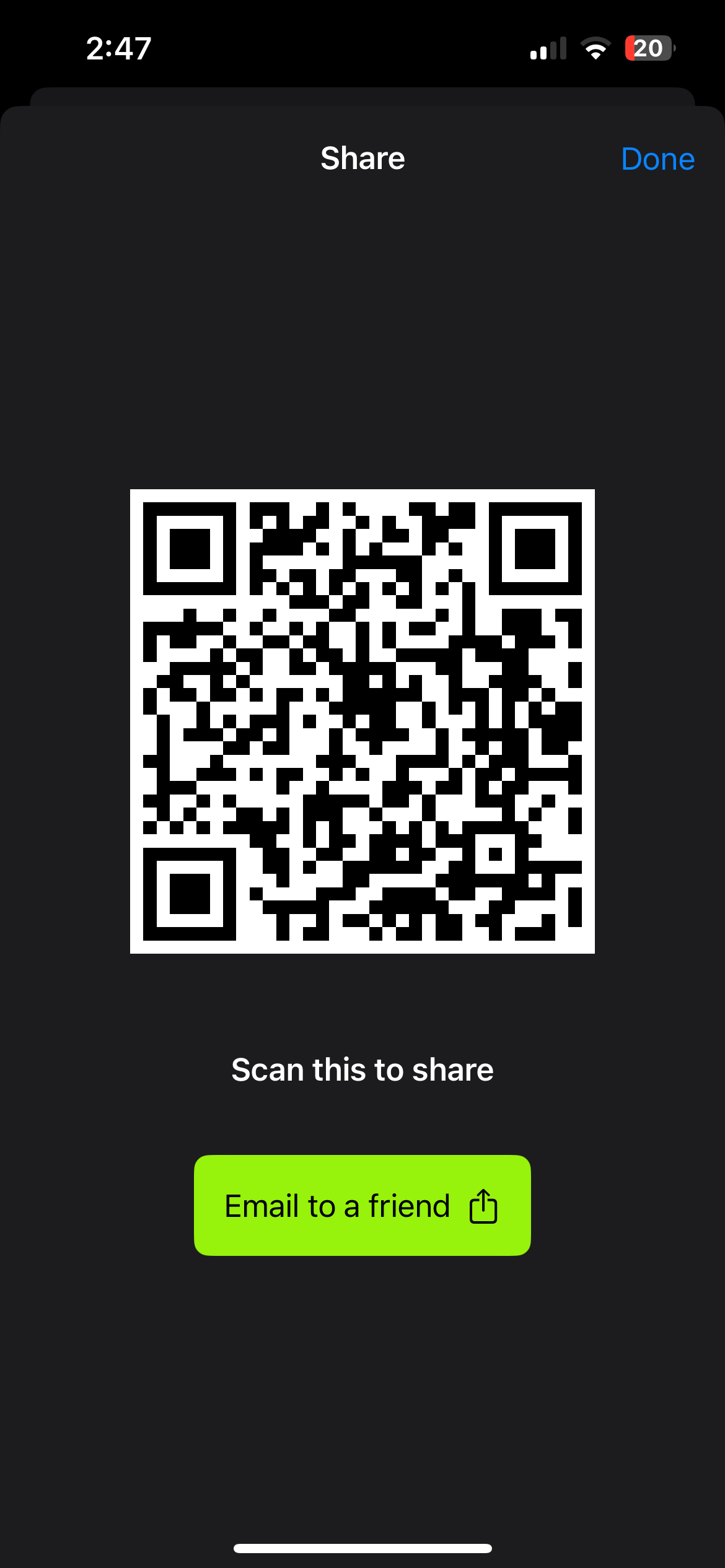
- Share the invite link or the QR code so they can join, or add them manually.
- Riders join as regular users.
3.2
Set Filmers to Admin
The people filming on course are your admins, the track managers running the feed. Only admins can add videos, so every filmer needs an admin role.
- In feed settings, set each filmer's role to admin.
- Admins can add videos and make changes to the feed, which is exactly what capturing and filing clips on the day requires.
- If extra staff film alongside the four track managers, add them as admins too. Riders stay as regular users.
Race
Day.
Keep the whole weekend in one shared race feed. Staff voice-tag every clip as they record it, calling out the rider and the sector, and sportsense organizes by rider and sector, so there is no manual sorting after practice.
Staff on sectors
Put 5 to 6 staff at the key sections you want to capture. Each filmer owns one sector and records every rider through it.
Film and Tag
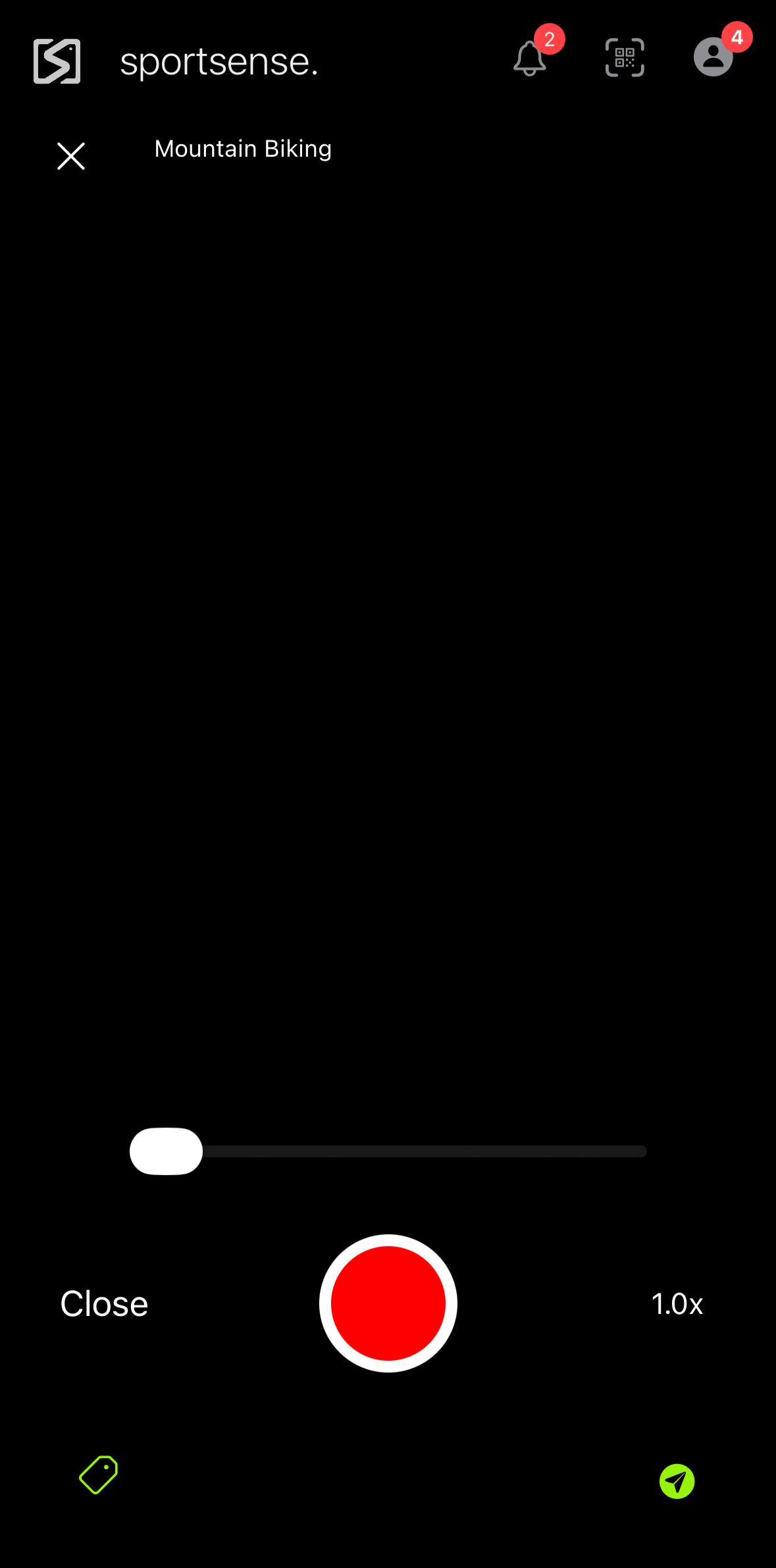
Open the sportsense camera, select the correct race feed (bottom right), record, and speak the tag as you film: "Rider name, sector X." You can also manually select tags in the camera (bottom left).
Lands in Uploads
The clip lands in the feed's Uploads and processes automatically, organized by the rider and sector you called out and ready for notes and review. No sorting through a camera roll afterwards.
A
Recording Workflow (per clip)
The same handful of steps for every clip, all day.
- Open the sportsense app camera.
- Select the feed you are sending to with the green arrow (bottom right).
- Record the clip.
- Speak the tag while filming, for example "Alex doing sector 5."
- The clip lands in Uploads for that feed, organized by rider, sector, and date, and ready for notes and tagging.
B
Voice Tagging
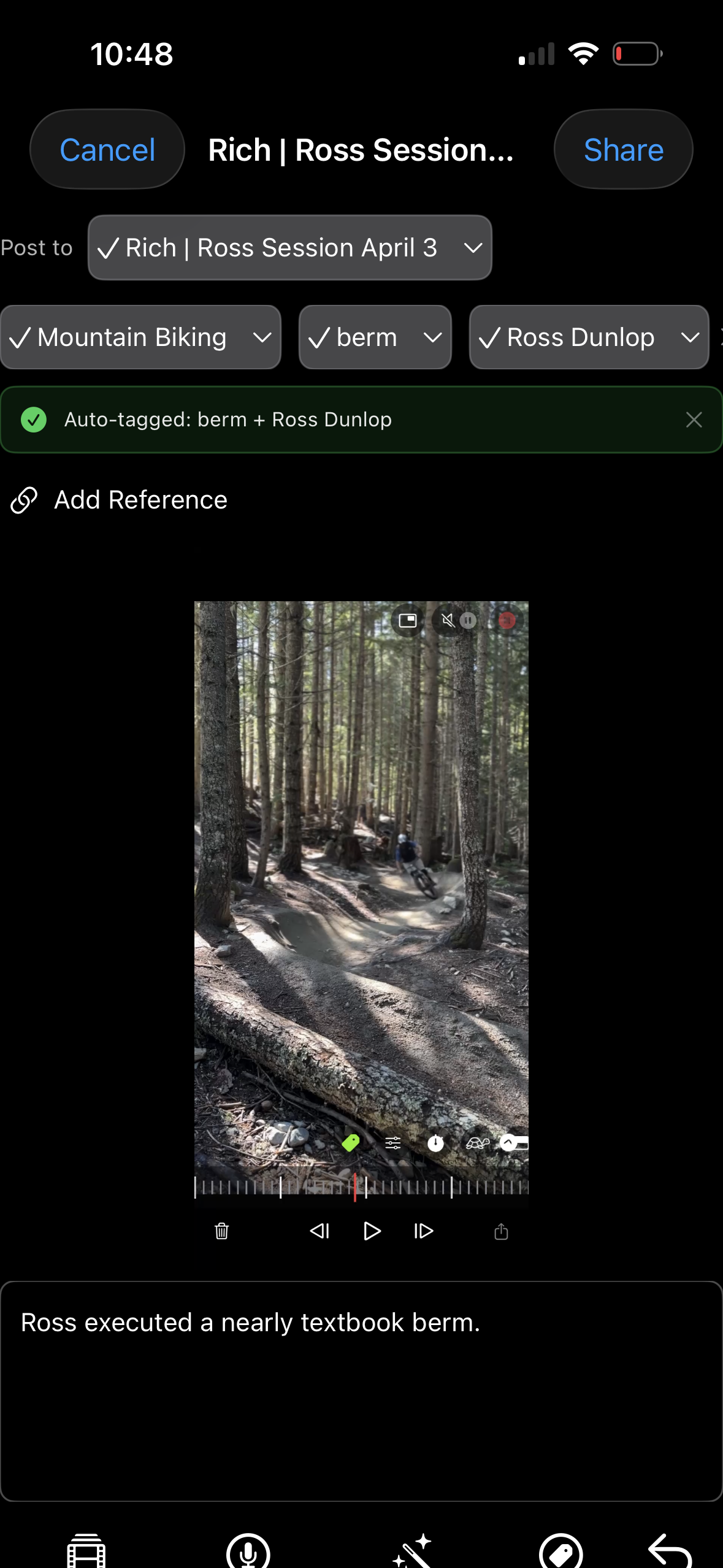
Narrate while you film, and sportsense transcribes what you say, so the rider and sector you call out become the clip's tags, with nothing to type afterwards.
- Record with the sportsense camera while calling out the rider and the sector, for example "Alex, sector 3."
- When the clip uploads, the app transcribes your voice and turns those call-outs into tags.
- Those tags are what let the feed organize every clip by rider and by sector.
C
Tab Workflow
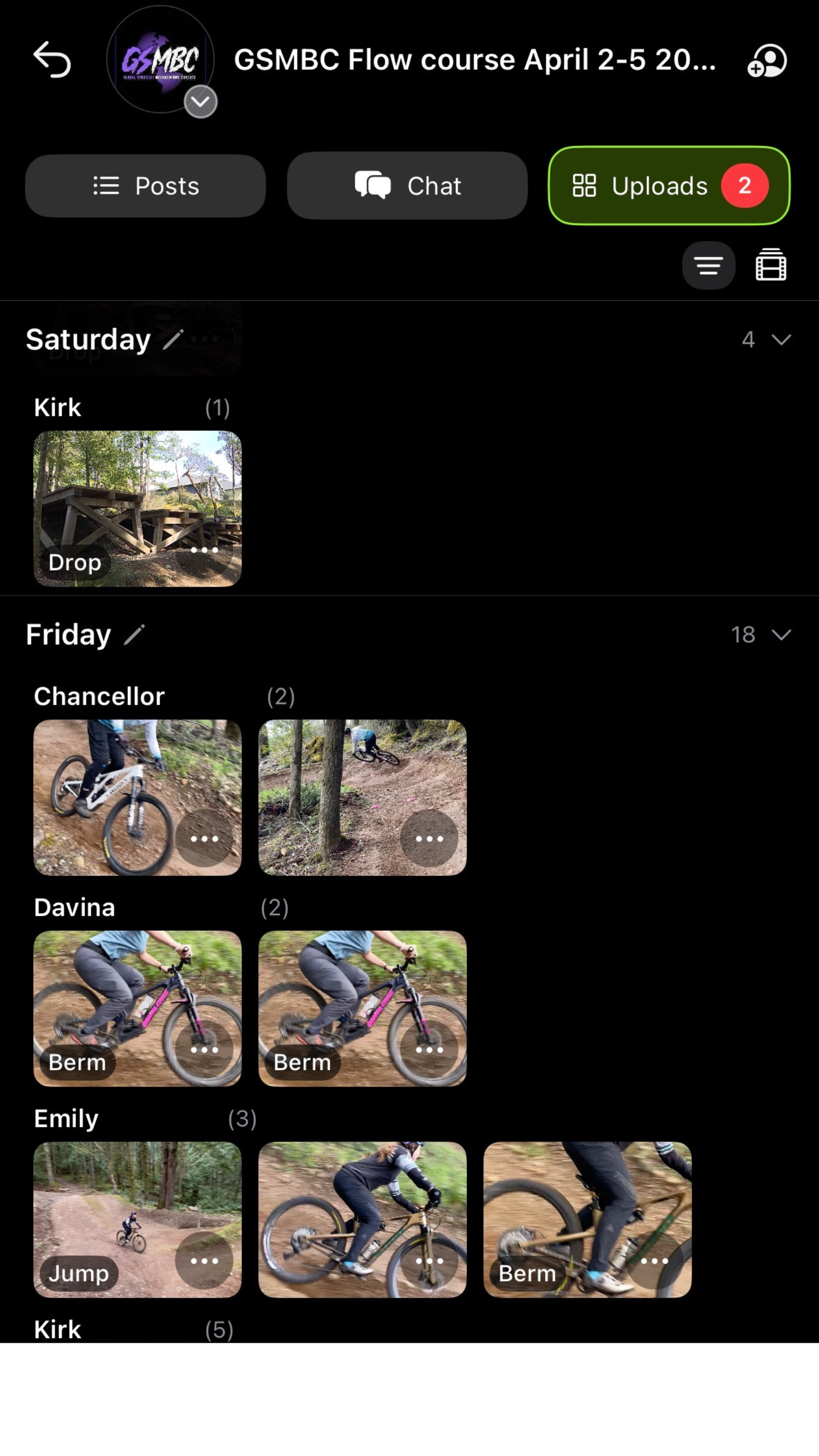
Three tabs keep the weekend organized.
- Uploads: all raw field capture, organized by rider, sector, and date.
- Posts: curated clips worth highlighting or discussing.
- Chats: discussion in the context of that feed.
D
Analysis & Creating Posts
Take the best clips from within the media and take them further.
- Pull a clip into the analyzer for a closer look.
- Or create a post directly from the media tab.
|
Free to Start